
Bottleneck Calculator - Check CPU & GPU Performance Balance
Will It Bottleneck? Run a Quick Bottleneck Test
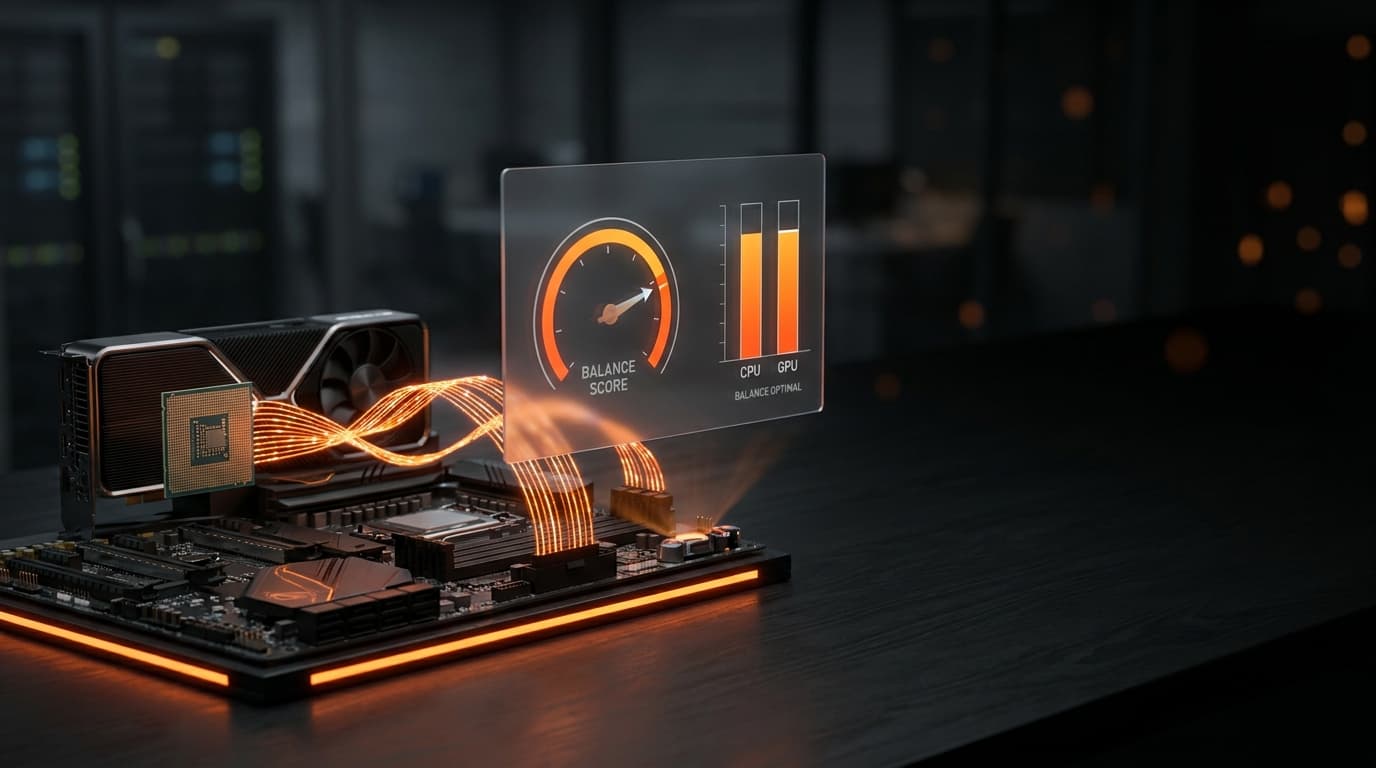
Not sure a new part is worth it? Every builder asks the same thing: will it bottleneck the rest of my rig? A bottleneck test settles it. Drop your processor and graphics card into the tool above and it measures how closely the two keep pace, flagging any CPU GPU bottleneck and showing which side still has headroom to spare. It handles every kind of pairing, from entry-level combos to a flagship match like our RTX 5090 CPU pairing breakdown. The result is a straight answer and a clear upgrade direction, so you can replace hunches with data.

Optimize Your Gaming PC & Maximize its Performance
Finding your bottleneck is only half the battle, the next step is squeezing more out of the hardware you already own. Before you buy anything new, our optimization guides walk you through the free wins: tuning an overworked processor, dialing in your RAM speed, fixing thermal throttling, and adjusting in-game settings that quietly cost you frames. Go beyond factory defaults and learn the tweaks that keep your gameplay smooth and stutter-free.
Fix Your Build: Best CPU & GPU Upgrades to Buy Now
Ready to upgrade? When your current parts can't keep up no matter how you tune them, the right new component is the fix. Below are our compatibility-tested processor and graphics card picks, grouped by budget so you can match your spend to your goals. Each one is chosen to pair cleanly without creating a new bottleneck, and every link takes you to the current deal on Amazon.
Best CPUs
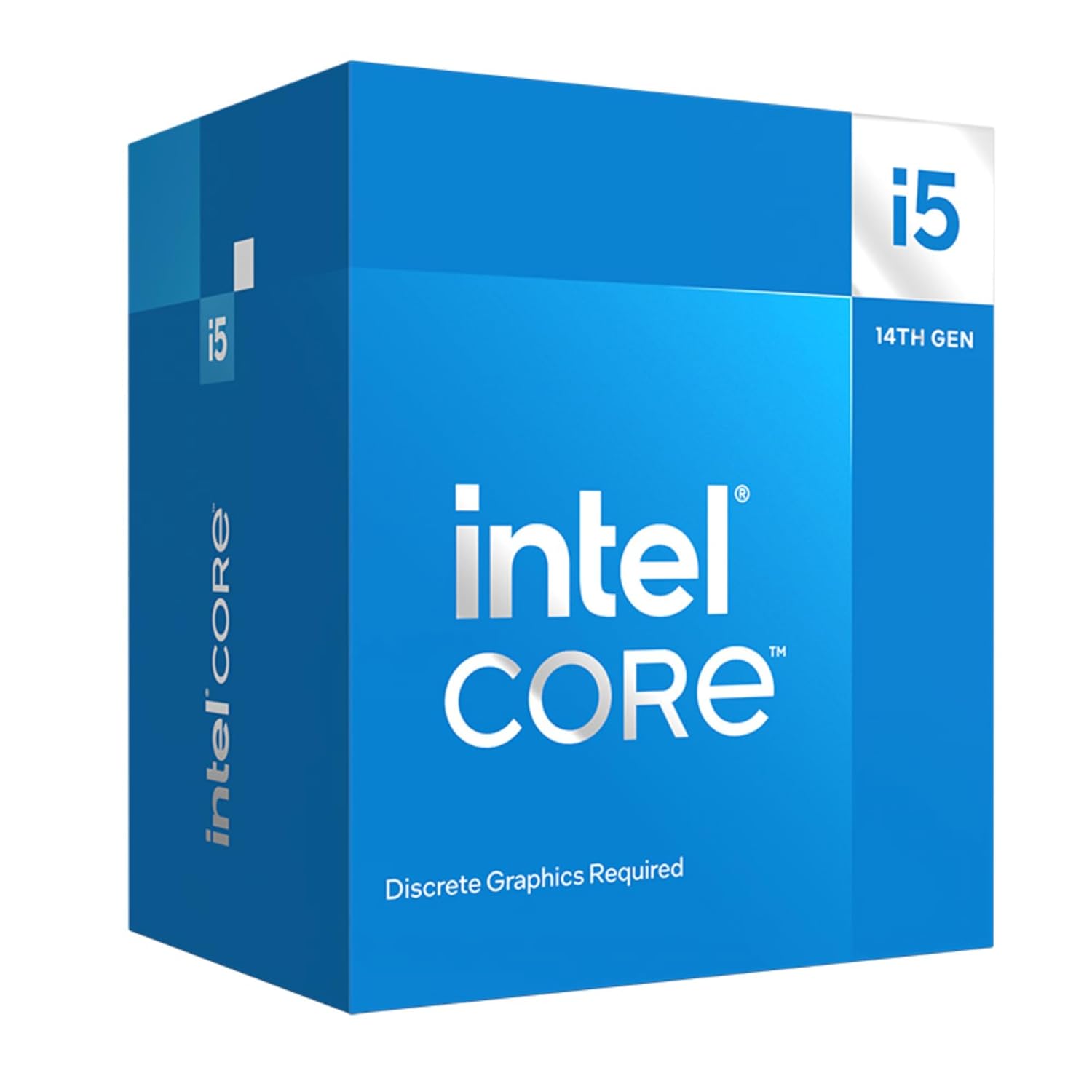
Intel Core i5-14400
- Cores10 (6P + 4E)
- Threads16
- Speed2.5 / 4.7 GHz
- SocketLGA 1700
- Processor SeriesIntel Core i5
- Secondary Cache (L2)9.5 MB
- Wattage (TDP)65 W
- Cache Installed (L3)20 MB
- Processor Count1
- PlatformDesktop PC
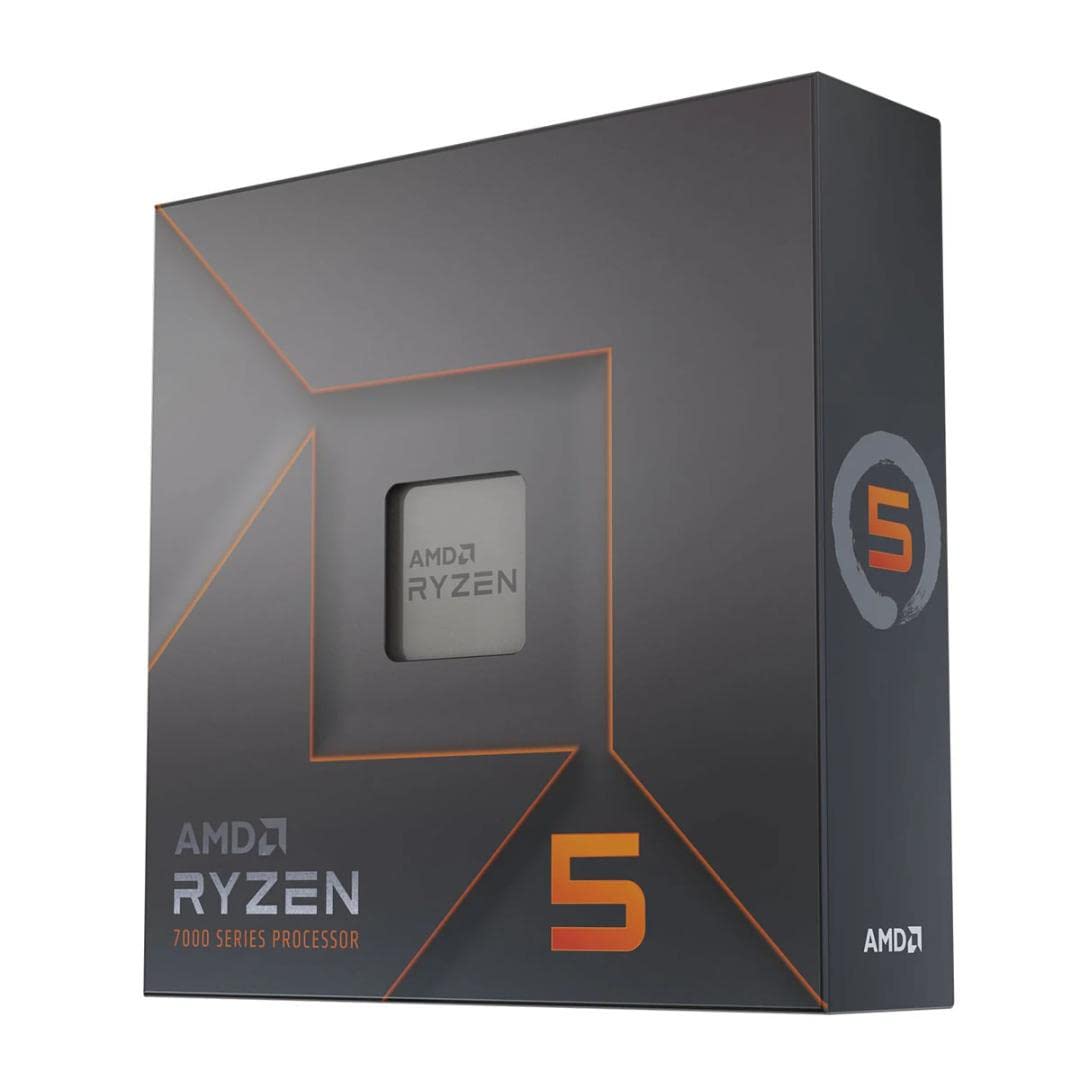
AMD Ryzen 5 7600X
- Cores6
- Threads12
- Speed4.7 / 5.3 GHz
- SocketAM5
- Processor SeriesAMD Ryzen 5
- Secondary Cache (L2)6 MB
- Wattage (TDP)105 W
- Cache Installed (L3)32 MB
- Processor Count1
- PlatformDesktop PC
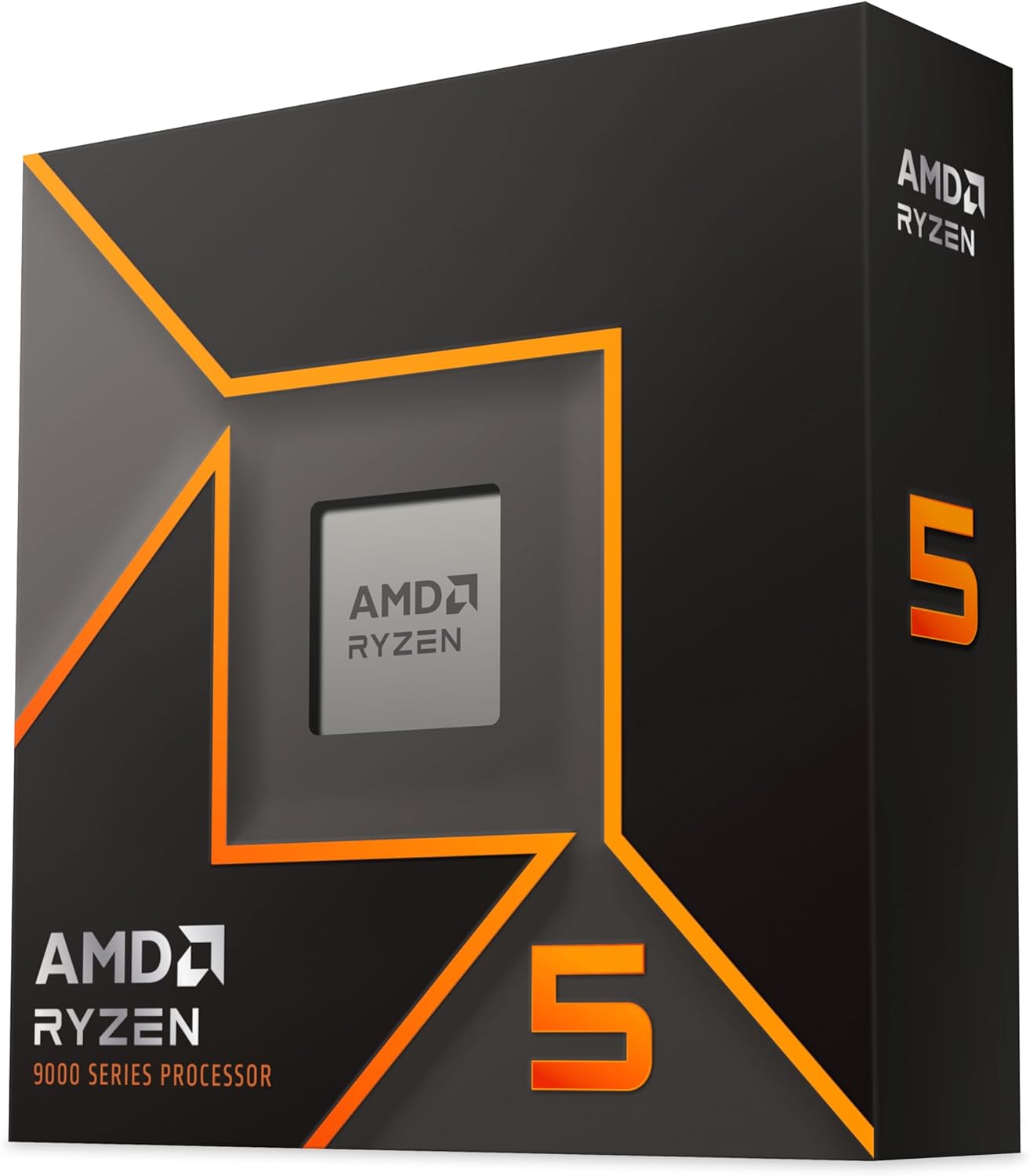
AMD Ryzen 5 9600X
- Cores6
- Threads12
- Speed3.9 / 5.4 GHz
- SocketAM5
- Processor SeriesAMD Ryzen 5 (Zen 5)
- Secondary Cache (L2)6 MB
- Wattage (TDP)65 W
- Cache Installed (L3)32 MB
- Processor Count1
- PlatformDesktop PC
AMD Ryzen 7 9700X
- Cores8
- Threads16
- Speed3.8 / 5.5 GHz
- SocketAM5
- Processor SeriesAMD Ryzen 7 (Zen 5)
- Secondary Cache (L2)8 MB
- Wattage (TDP)65 W
- Cache Installed (L3)32 MB
- Processor Count1
- PlatformDesktop PC
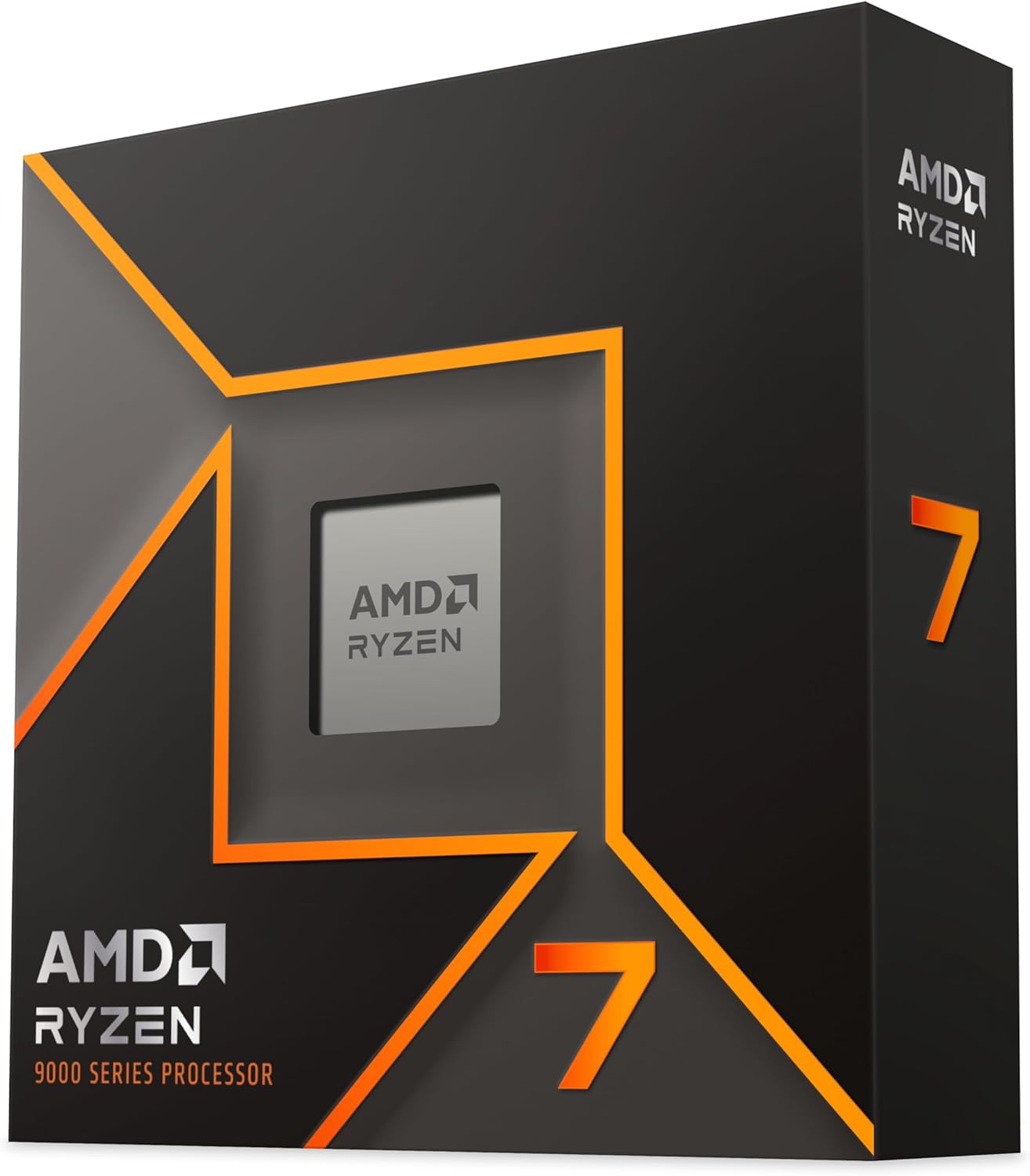
AMD Ryzen 9 9900X
- Cores12
- Threads24
- Speed4.4 / 5.6 GHz
- SocketAM5
- Processor SeriesAMD Ryzen 9
- Secondary Cache (L2)12 MB
- Wattage (TDP)120 W
- Cache Installed (L3)64 MB
- Processor Count1
- PlatformDesktop PC
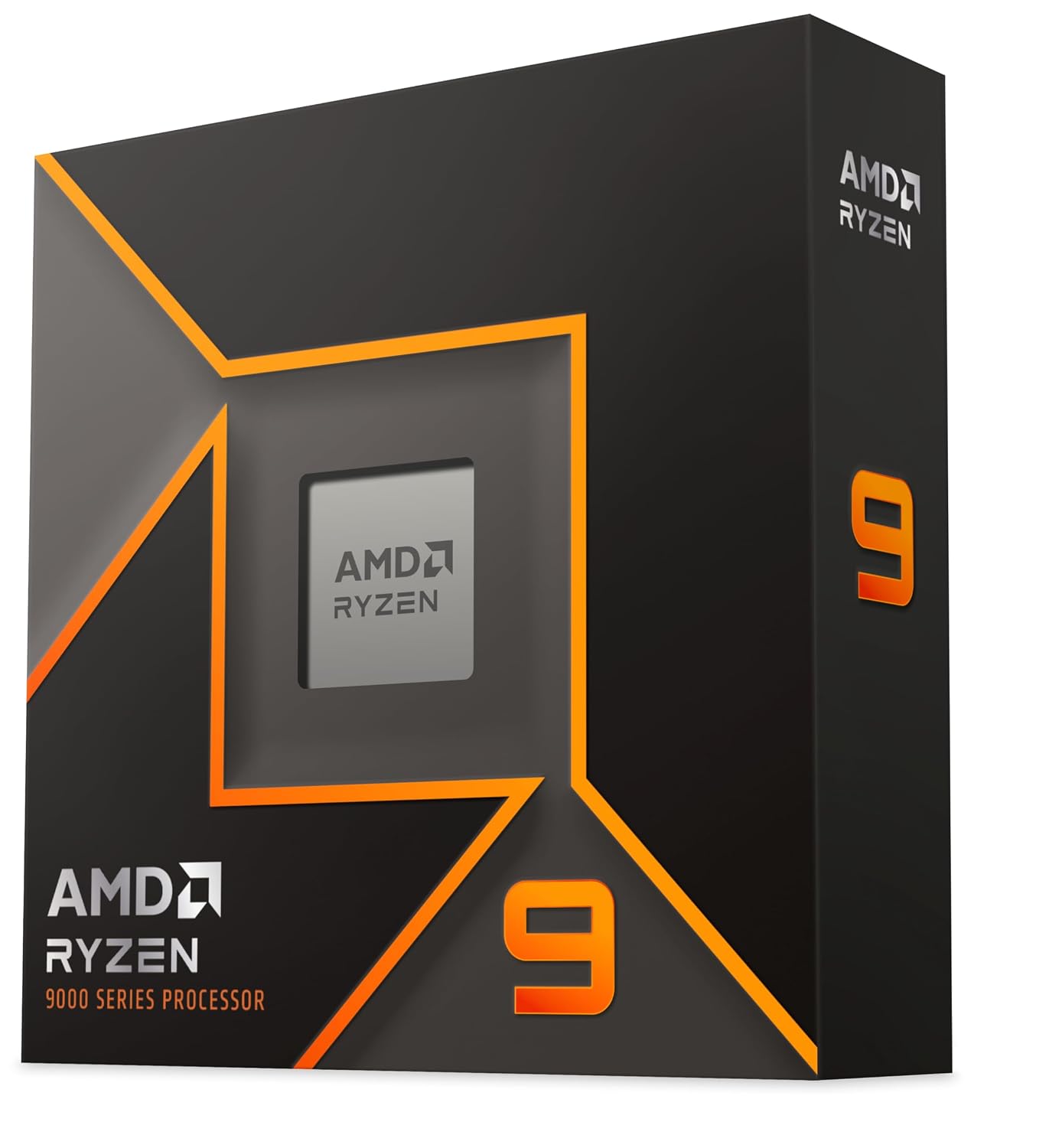
Intel Core i7-14700KF
- Cores20 (8P + 12E)
- Threads28
- Speed3.4 / 5.6 GHz
- SocketLGA 1700
- Processor SeriesIntel Core i7
- Secondary Cache (L2)28 MB
- Wattage (TDP)125 W
- Cache Installed (L3)33 MB
- Processor Count1
- PlatformDesktop PC
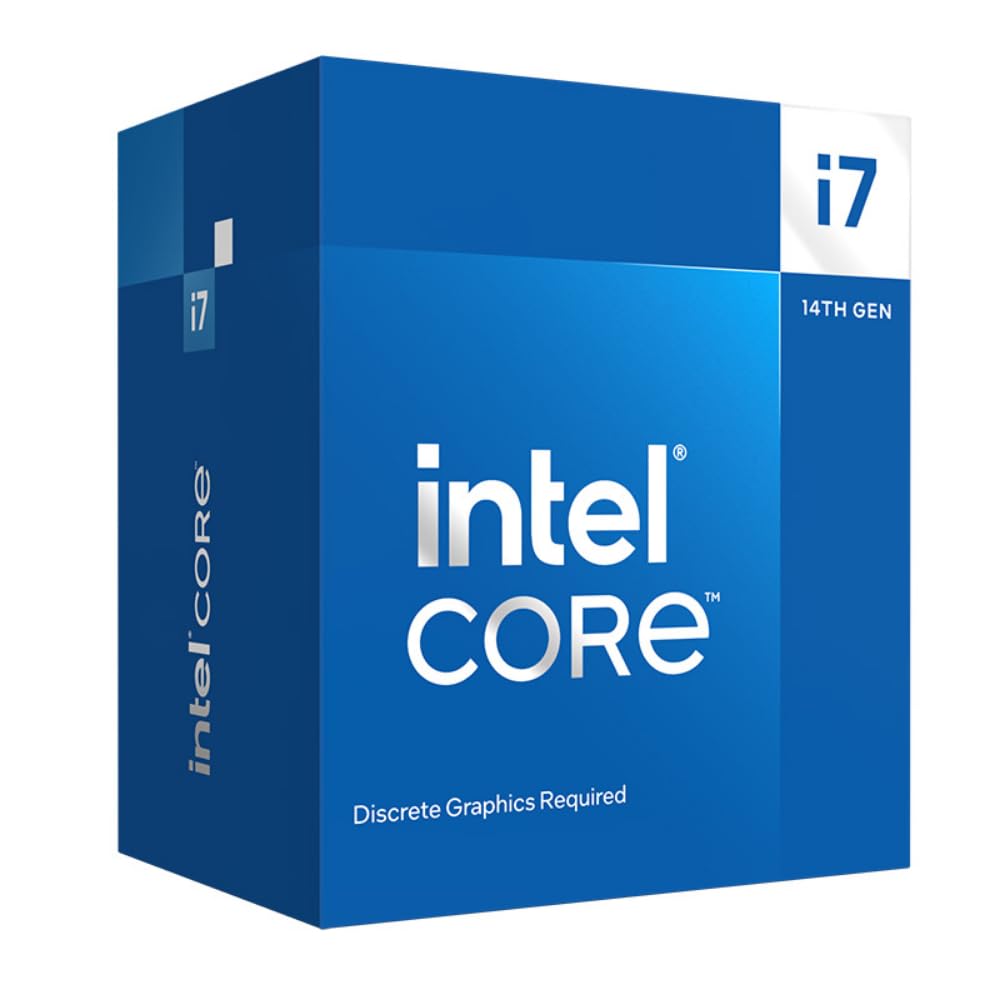
Intel Core Ultra 7 265K
- Cores20 (8P + 12E)
- Threads20
- Speed3.9 / 5.5 GHz
- SocketLGA 1851
- Processor SeriesIntel Core Ultra 7 (Arrow Lake)
- Secondary Cache (L2)36 MB
- Wattage (TDP)125 W
- Cache Installed (L3)30 MB
- Processor Count1
- PlatformDesktop PC
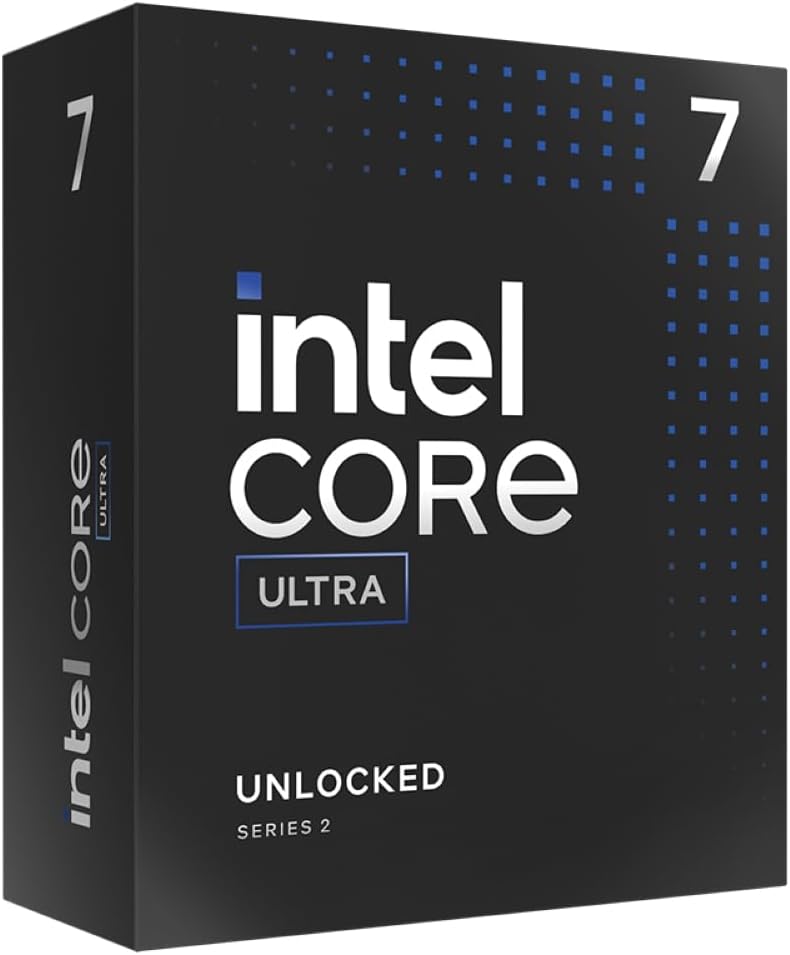
AMD Ryzen 9 9950X
- Cores16
- Threads32
- Speed4.3 / 5.7 GHz
- SocketAM5
- Processor SeriesAMD Ryzen 9
- Secondary Cache (L2)16 MB
- Wattage (TDP)170 W
- Cache Installed (L3)64 MB
- Processor Count1
- PlatformDesktop PC
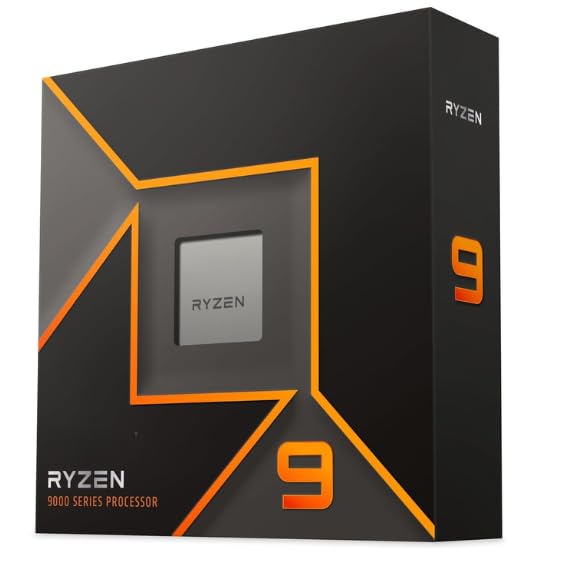
Intel Core i9-14900K
- Cores24 (8P + 16E)
- Threads32
- Speed3.2 / 6.0 GHz
- SocketLGA 1700
- Processor SeriesIntel Core i9
- Secondary Cache (L2)32 MB
- Wattage (TDP)125 W
- Cache Installed (L3)36 MB
- Processor Count1
- PlatformDesktop PC
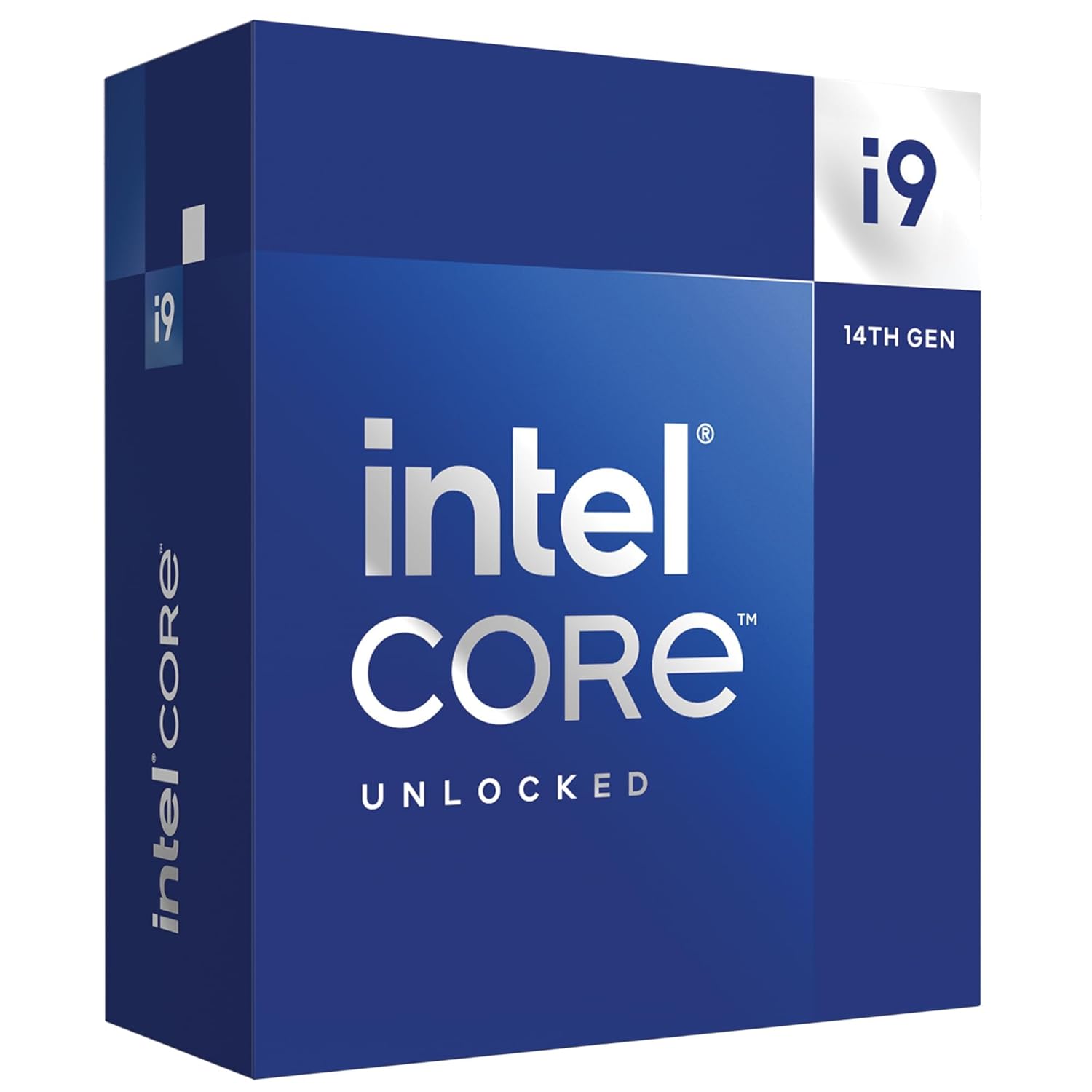
Intel Core Ultra 9 285K
- Cores24 (8P + 16E)
- Threads24
- Speed3.7 / 5.7 GHz
- SocketLGA 1851
- Processor SeriesIntel Core Ultra 9 (Arrow Lake)
- Secondary Cache (L2)40 MB
- Wattage (TDP)125 W
- Cache Installed (L3)36 MB
- Processor Count1
- PlatformDesktop PC
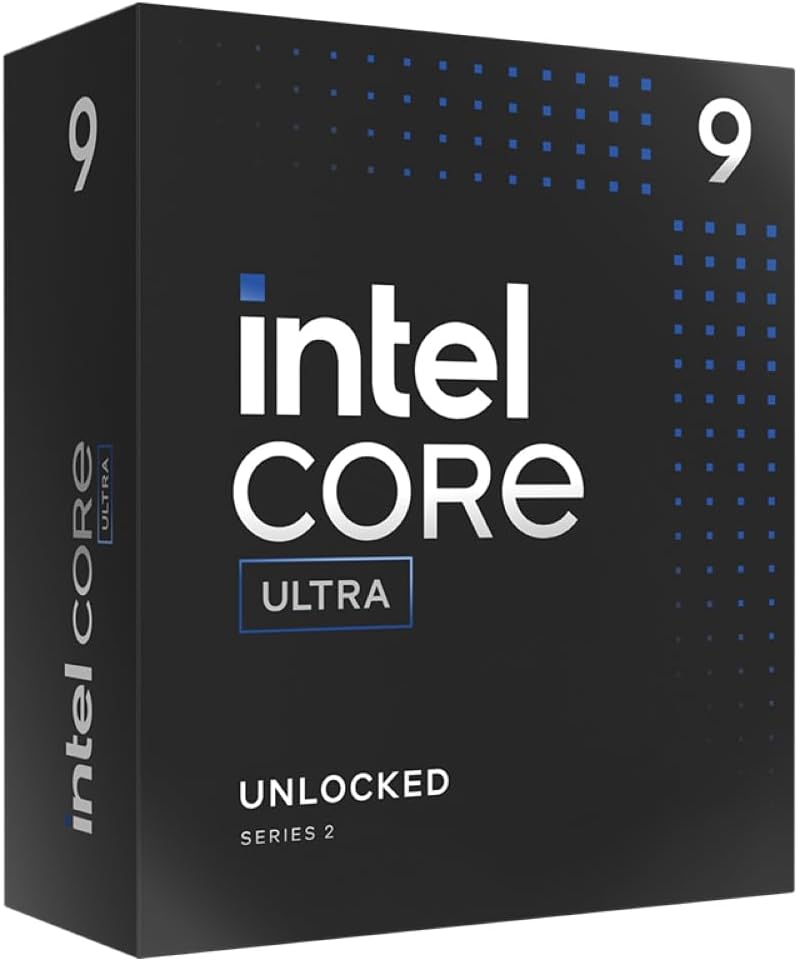
AMD Ryzen 9 9950X3D
- Cores16
- Threads32
- Speed4.3 / 5.7 GHz
- SocketAM5
- Processor SeriesAMD Ryzen 9
- Secondary Cache (L2)16 MB
- Wattage (TDP)170 W
- Cache Installed (L3)128 MB (3D V-Cache)
- Processor Count1
- PlatformDesktop PC
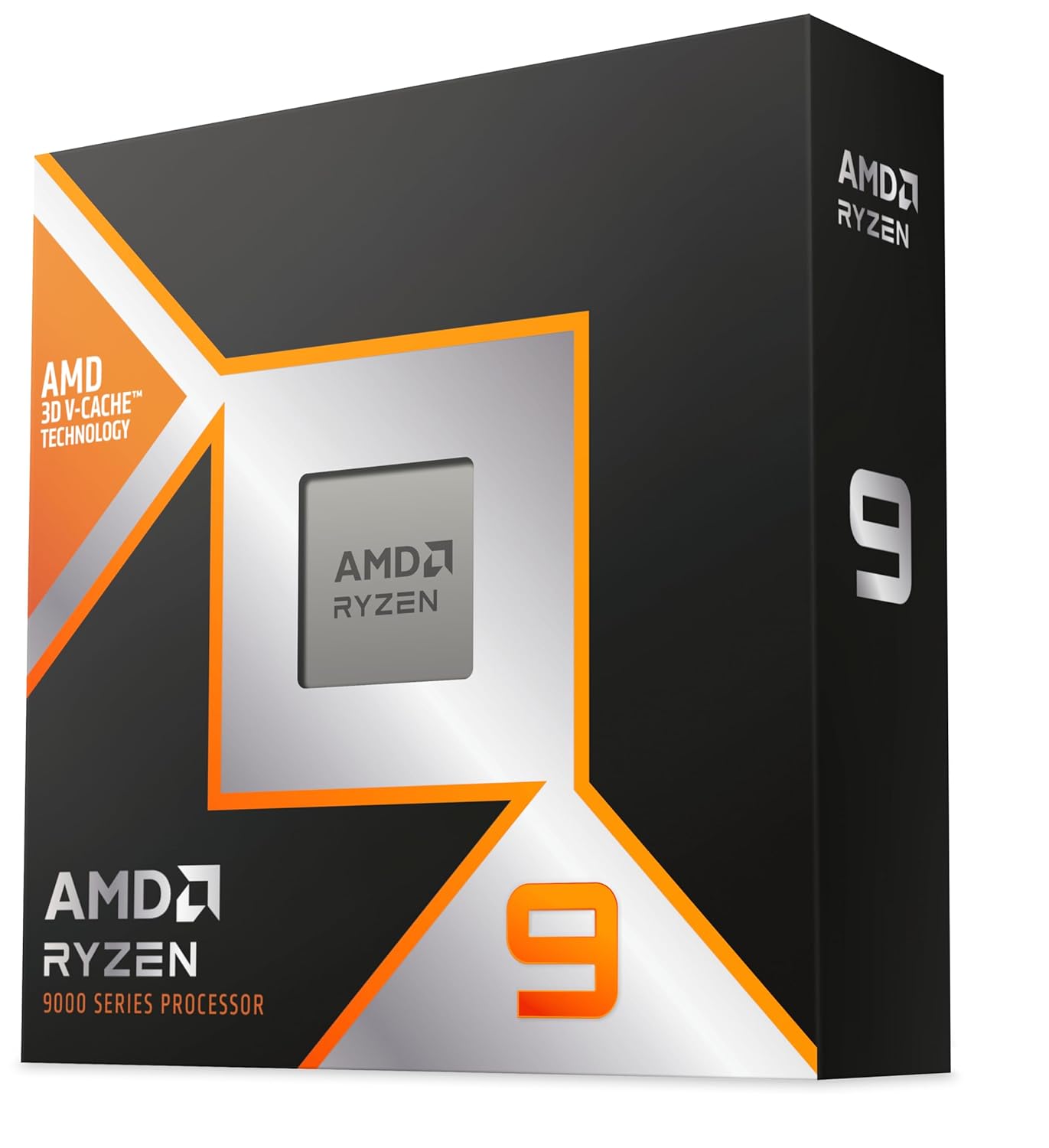
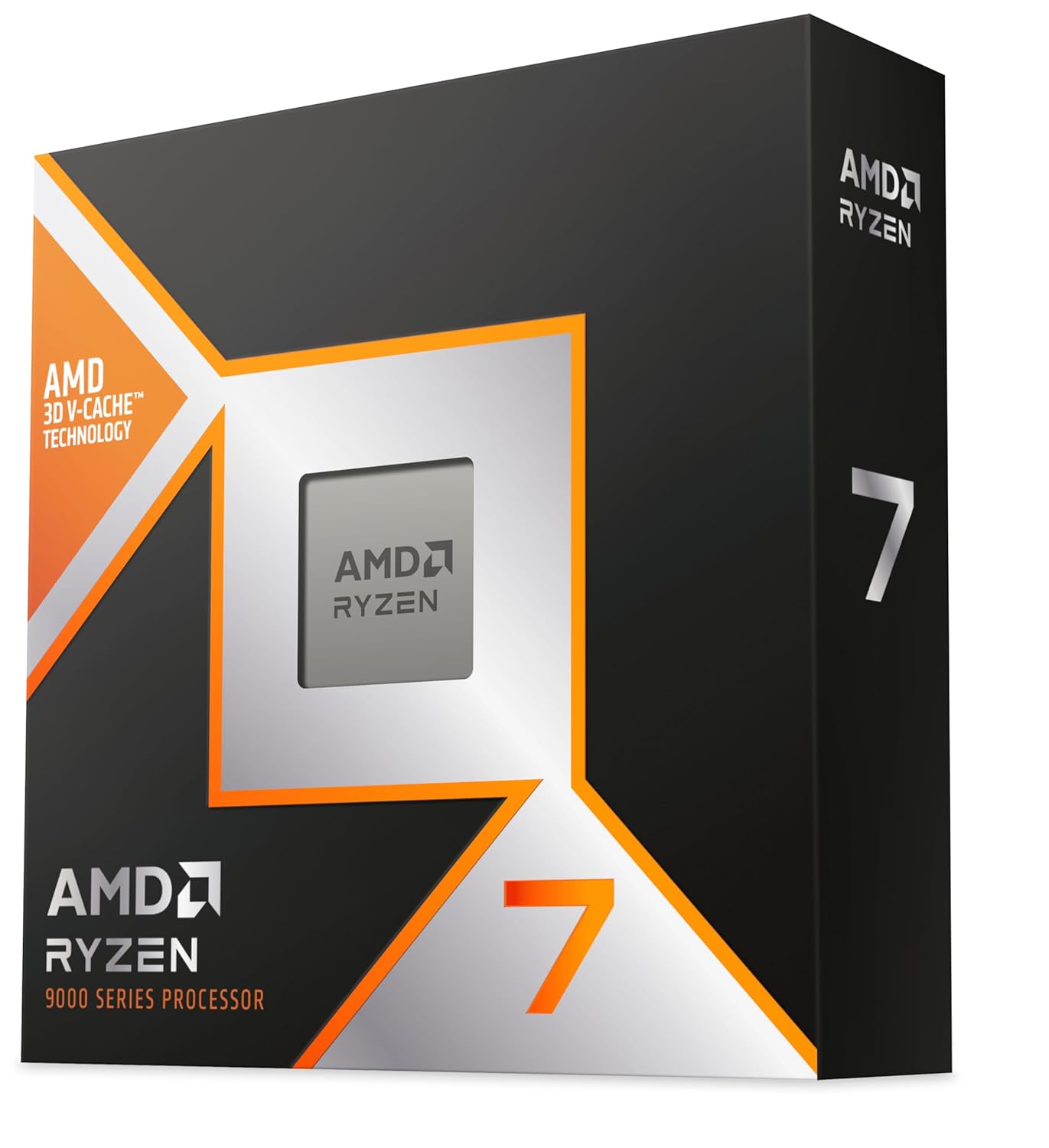
AMD Ryzen 7 9800X3D
- Cores8
- Threads16
- Speed4.7 / 5.2 GHz
- SocketAM5
- Processor SeriesAMD Ryzen 7
- Secondary Cache (L2)8 MB
- Wattage (TDP)120 W
- Cache Installed (L3)96 MB (3D V-Cache)
- Processor Count1
- PlatformDesktop PC
Best GPUs
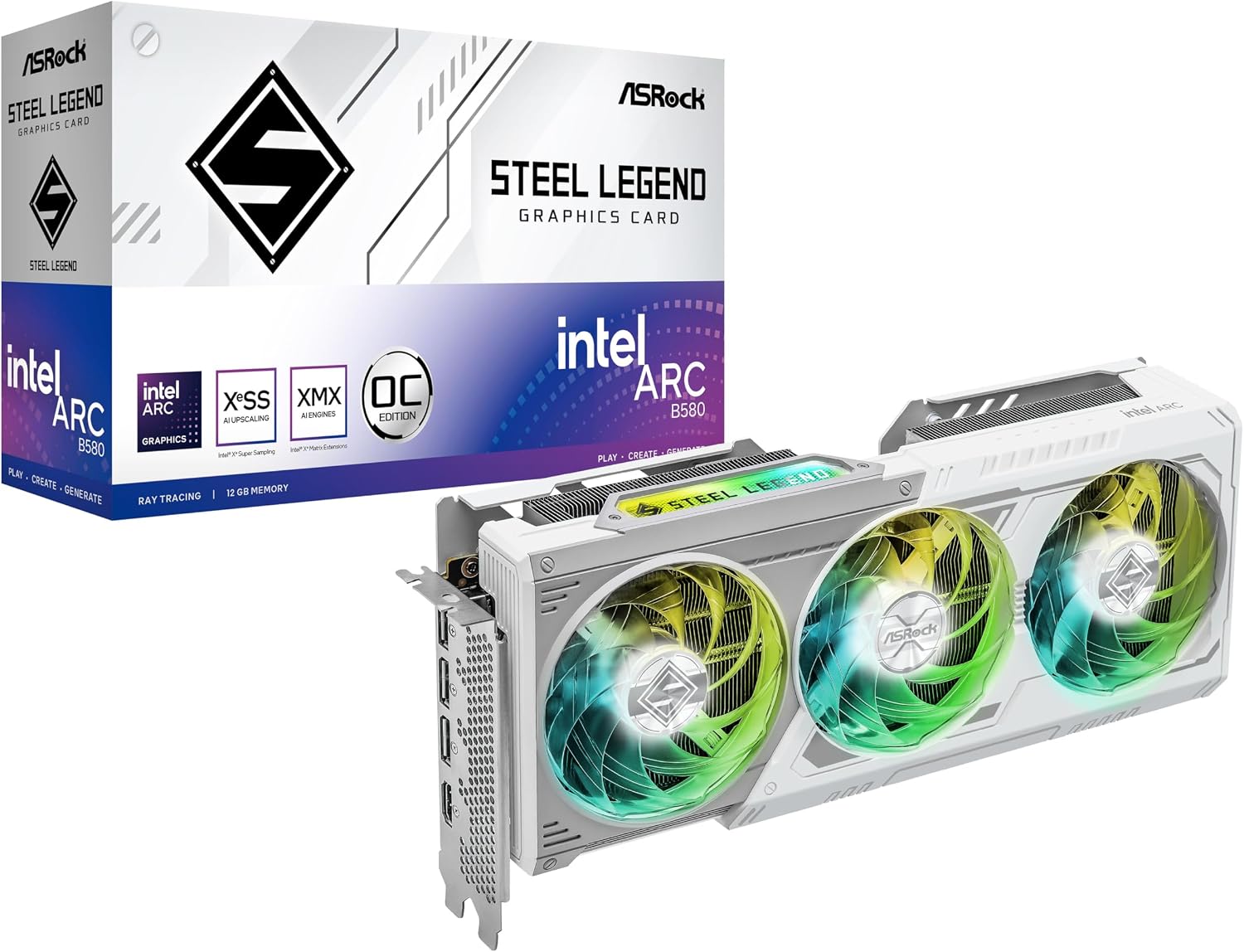
ASRock Intel Arc B580 Steel Legend 12GB
- Graphics RAM12 GB GDDR6
- Boost Clock~2.74 GHz
- Cores2,560 (20 Xe)
- Wattage (TDP)190 W
- GPU ChipsetIntel Arc B580
- Memory Interface192-bit
- InterfacePCIe 4.0
- PlatformDesktop PC
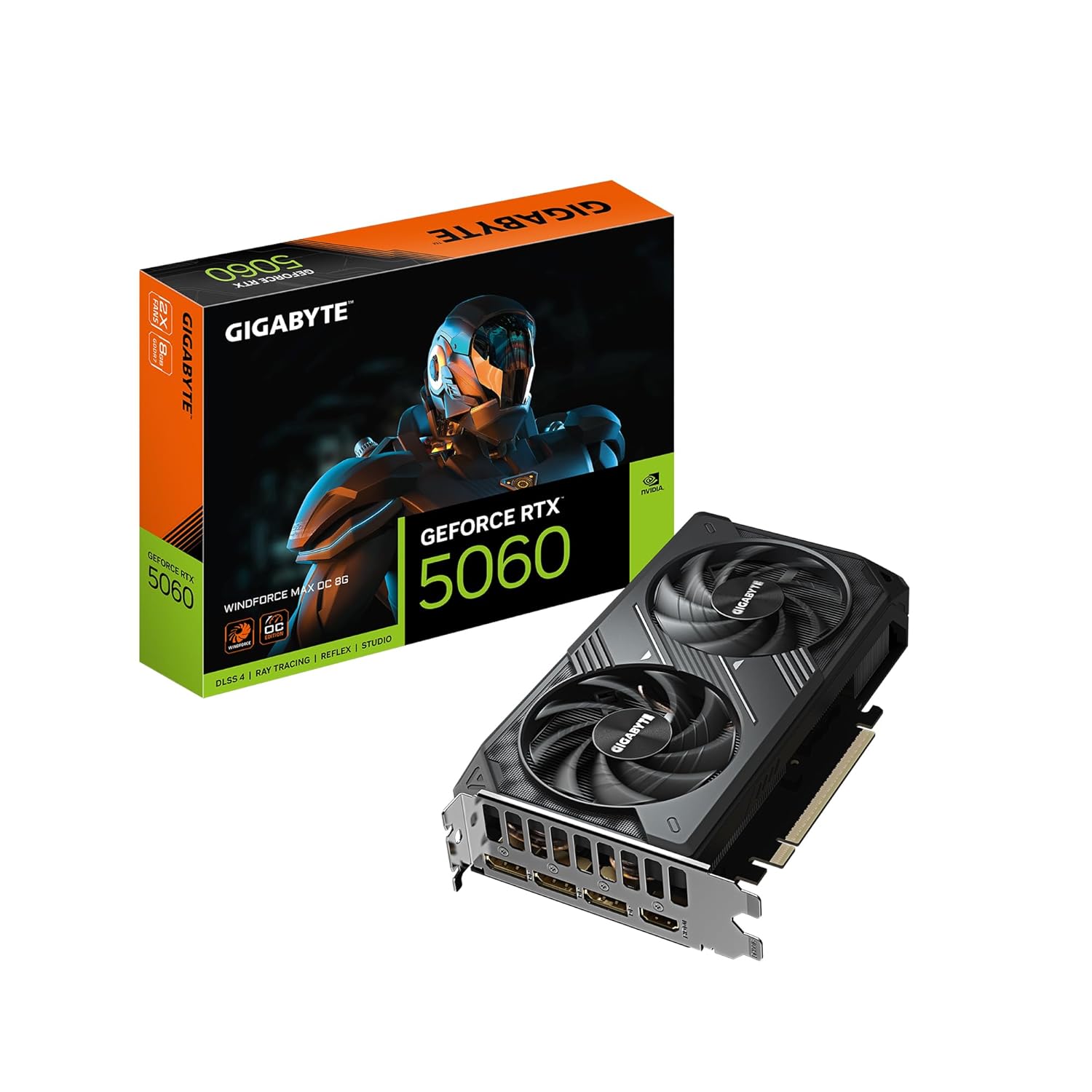
Gigabyte NVIDIA GeForce RTX 5060 8GB
- Graphics RAM8 GB GDDR7
- Boost Clock~2.50 GHz
- Cores3,840 CUDA
- Wattage (TDP)145 W
- GPU ChipsetGeForce RTX 5060
- Memory Interface128-bit
- InterfacePCIe 5.0
- PlatformDesktop PC
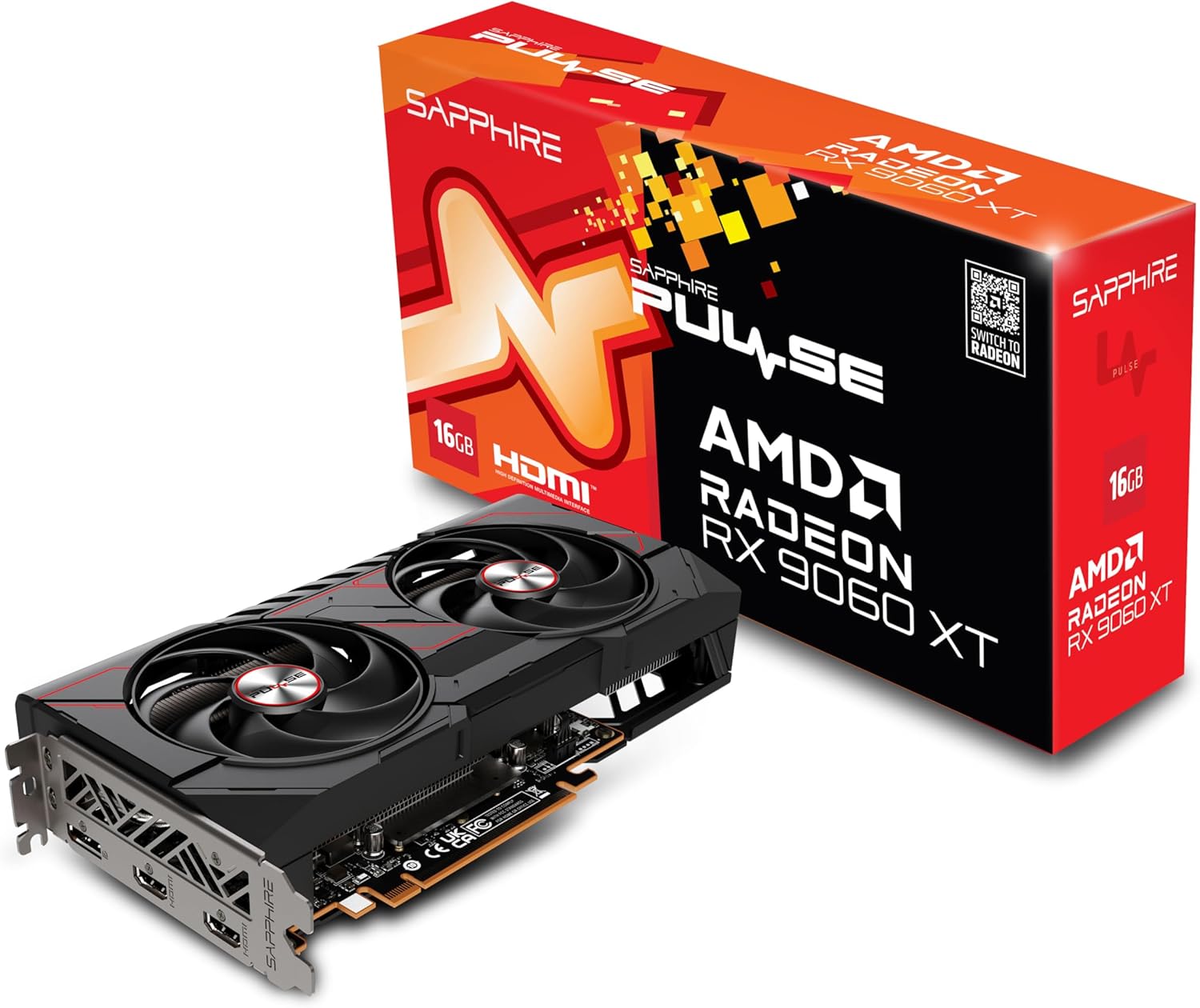
Sapphire Pulse AMD Radeon RX 9060 XT 16GB
- Graphics RAM16 GB GDDR6
- Boost Clock~3.13 GHz
- Cores2,048 (32 CU)
- Wattage (TDP)160 W
- GPU ChipsetRadeon RX 9060 XT (RDNA 4)
- Memory Interface128-bit
- InterfacePCIe 5.0
- PlatformDesktop PC
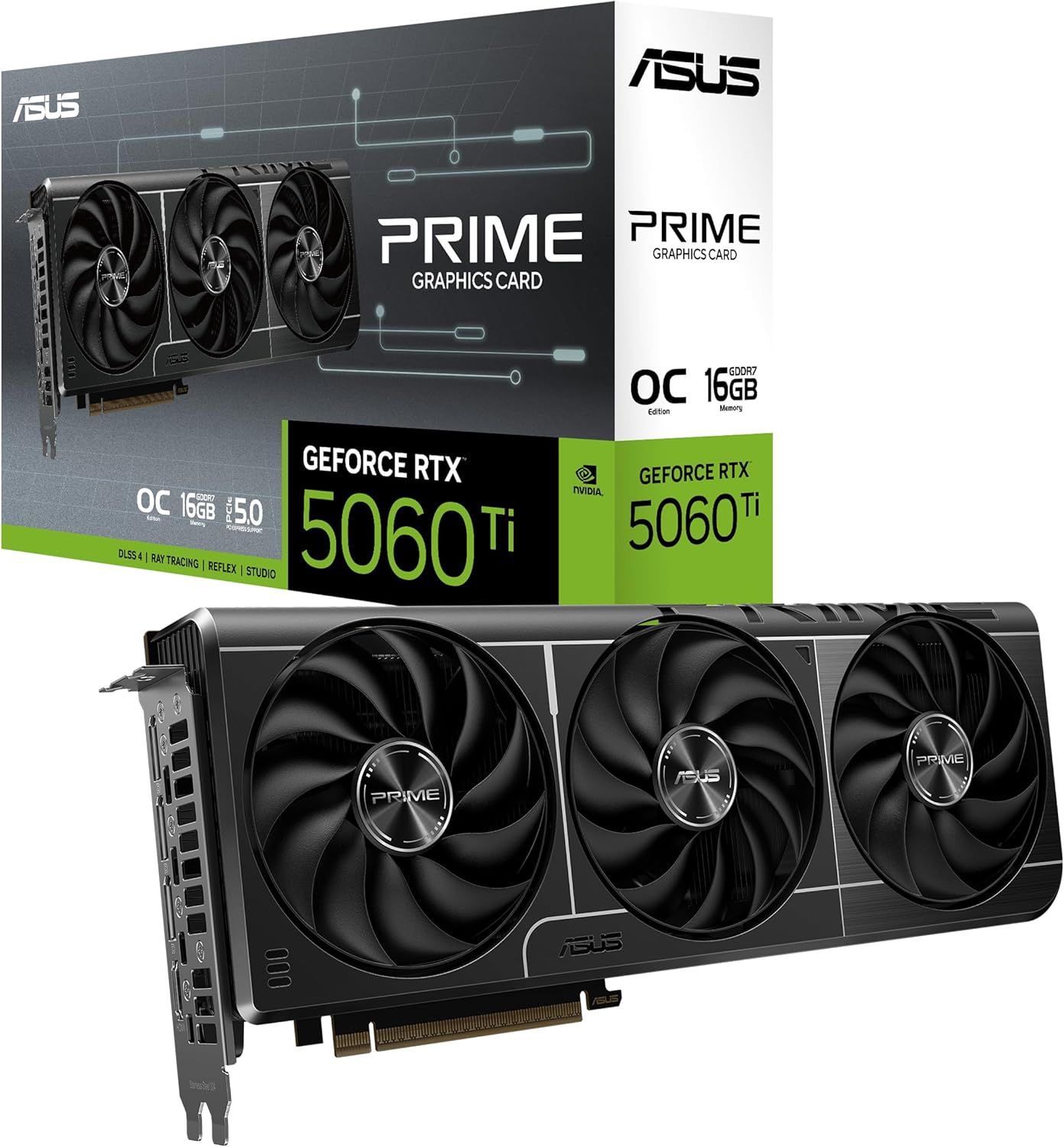
ASUS Prime NVIDIA GeForce RTX 5060 Ti 16GB
- Graphics RAM16 GB GDDR7
- Boost Clock~2.57 GHz
- Cores4,608 CUDA
- Wattage (TDP)180 W
- GPU ChipsetGeForce RTX 5060 Ti
- Memory Interface128-bit
- InterfacePCIe 5.0
- PlatformDesktop PC
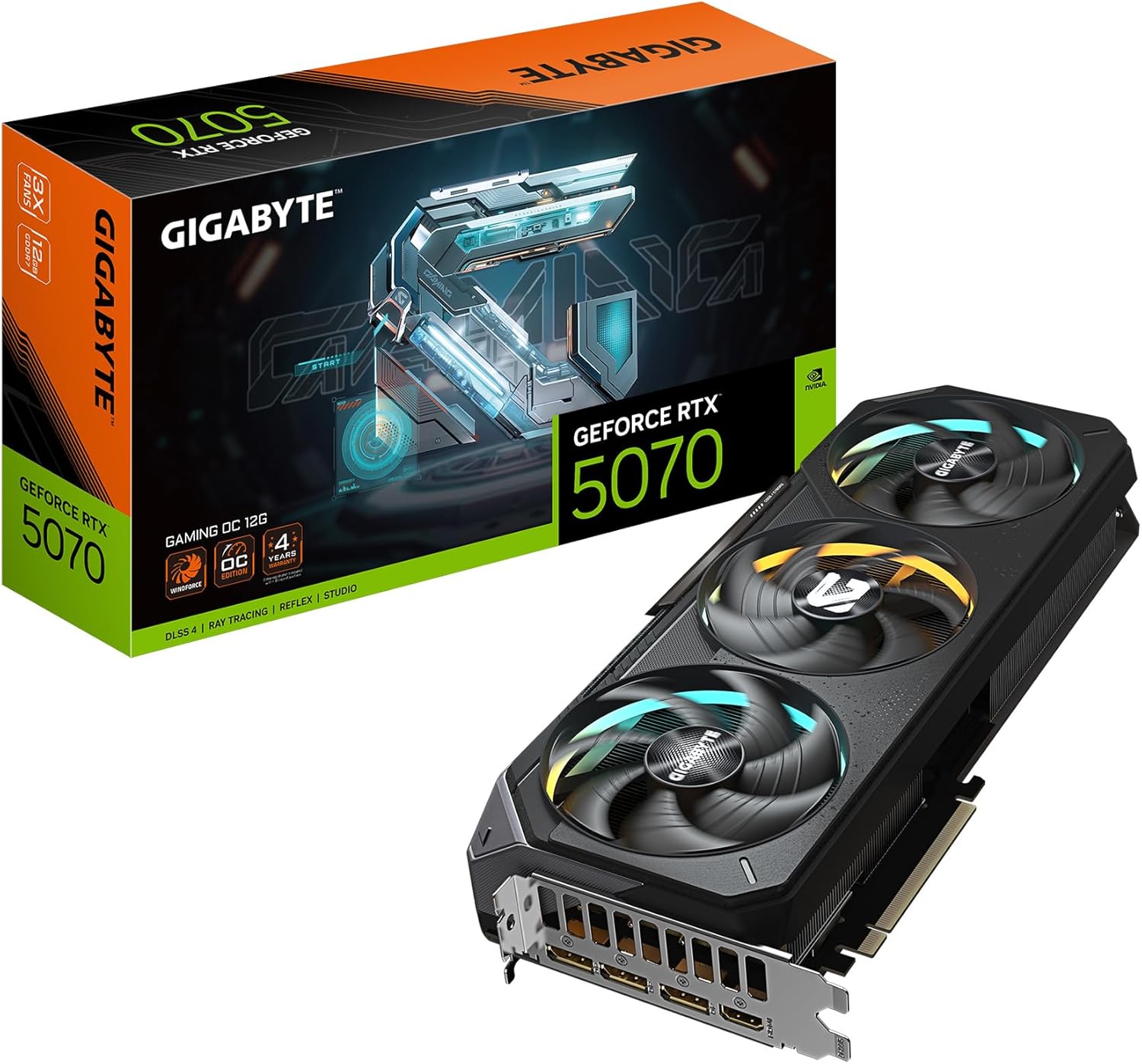
Gigabyte NVIDIA GeForce RTX 5070 12GB
- Graphics RAM12 GB GDDR7
- Boost Clock~2.63 GHz
- Cores6,144 CUDA
- Wattage (TDP)250 W
- GPU ChipsetGeForce RTX 5070
- Memory Interface192-bit
- InterfacePCIe 5.0
- PlatformDesktop PC
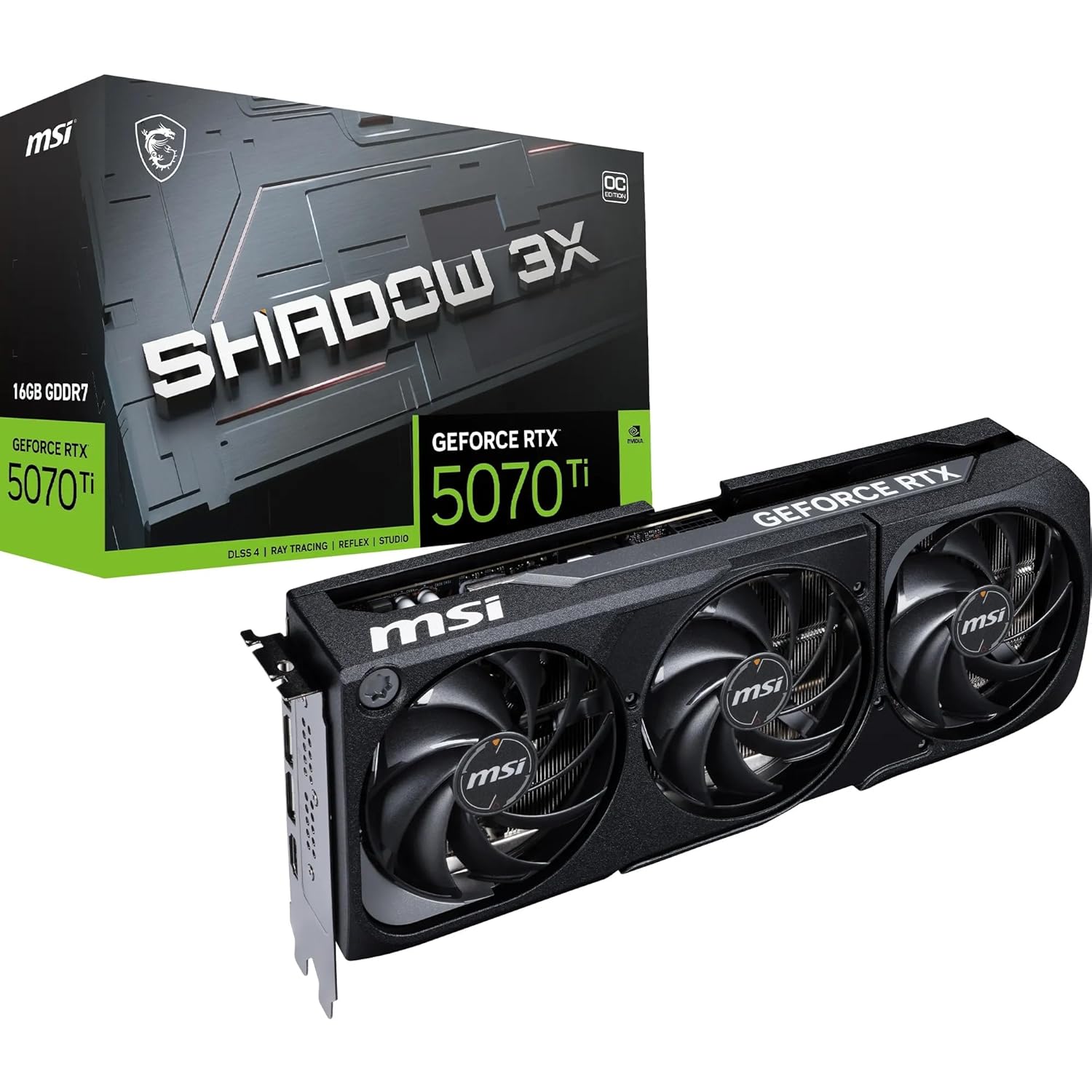
MSI NVIDIA GeForce RTX 5070 Ti 16GB
- Graphics RAM16 GB GDDR7
- Boost Clock~2.45 GHz
- Cores8,960 CUDA
- Wattage (TDP)300 W
- GPU ChipsetGeForce RTX 5070 Ti
- Memory Interface256-bit
- InterfacePCIe 5.0
- PlatformDesktop PC
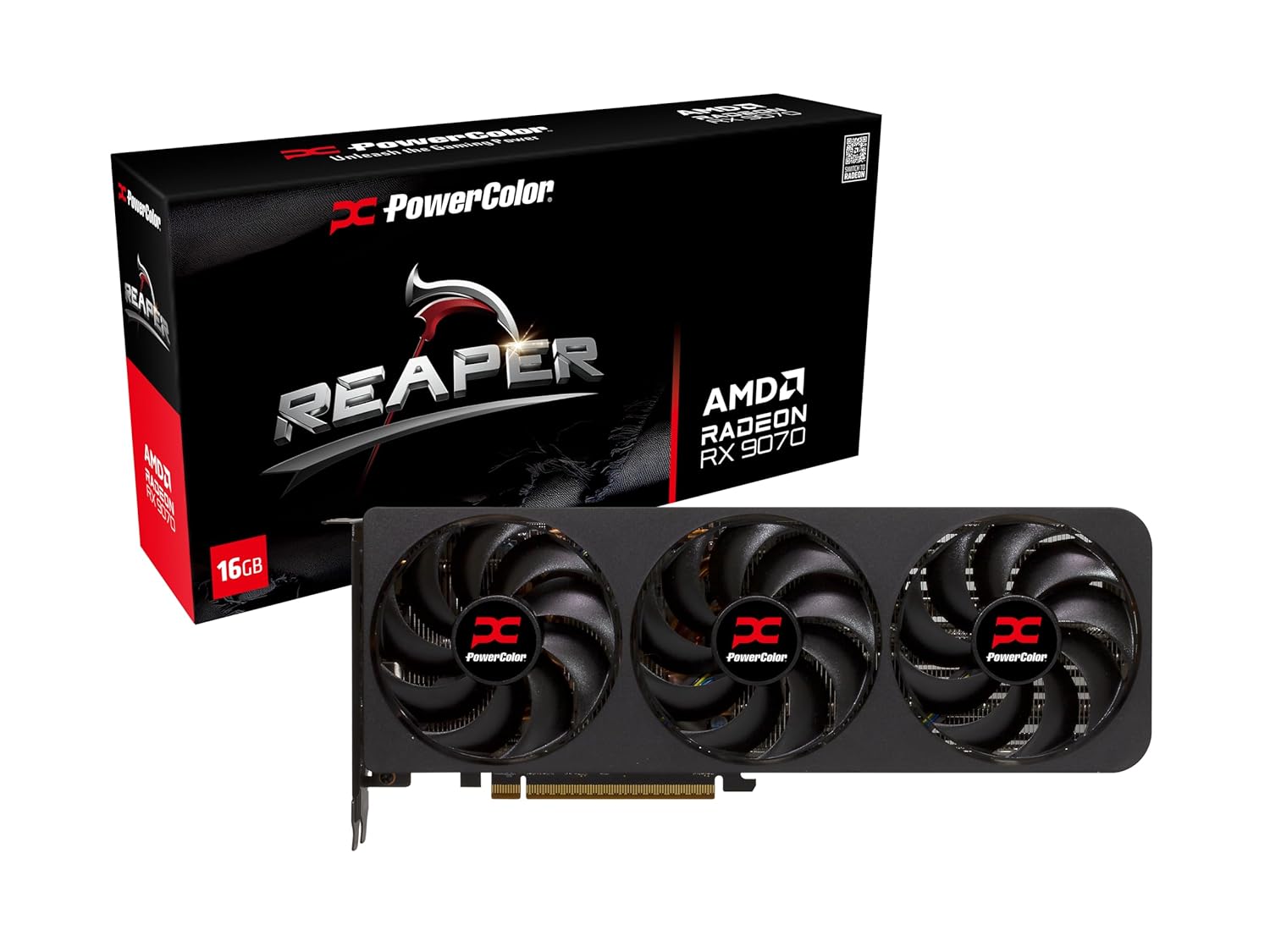
PowerColor Reaper AMD Radeon RX 9070 16GB
- Graphics RAM16 GB GDDR6
- Boost Clock~2.52 GHz
- Cores3,584 (56 CU)
- Wattage (TDP)220 W
- GPU ChipsetRadeon RX 9070
- Memory Interface256-bit
- InterfacePCIe 5.0
- PlatformDesktop PC
Yeston AMD Radeon RX 7800 XT 16GB
- Graphics RAM16 GB GDDR6
- Boost Clock~2.43 GHz
- Cores3,840 (60 CU)
- Wattage (TDP)263 W
- GPU ChipsetRadeon RX 7800 XT
- Memory Interface256-bit
- InterfacePCIe 4.0
- PlatformDesktop PC
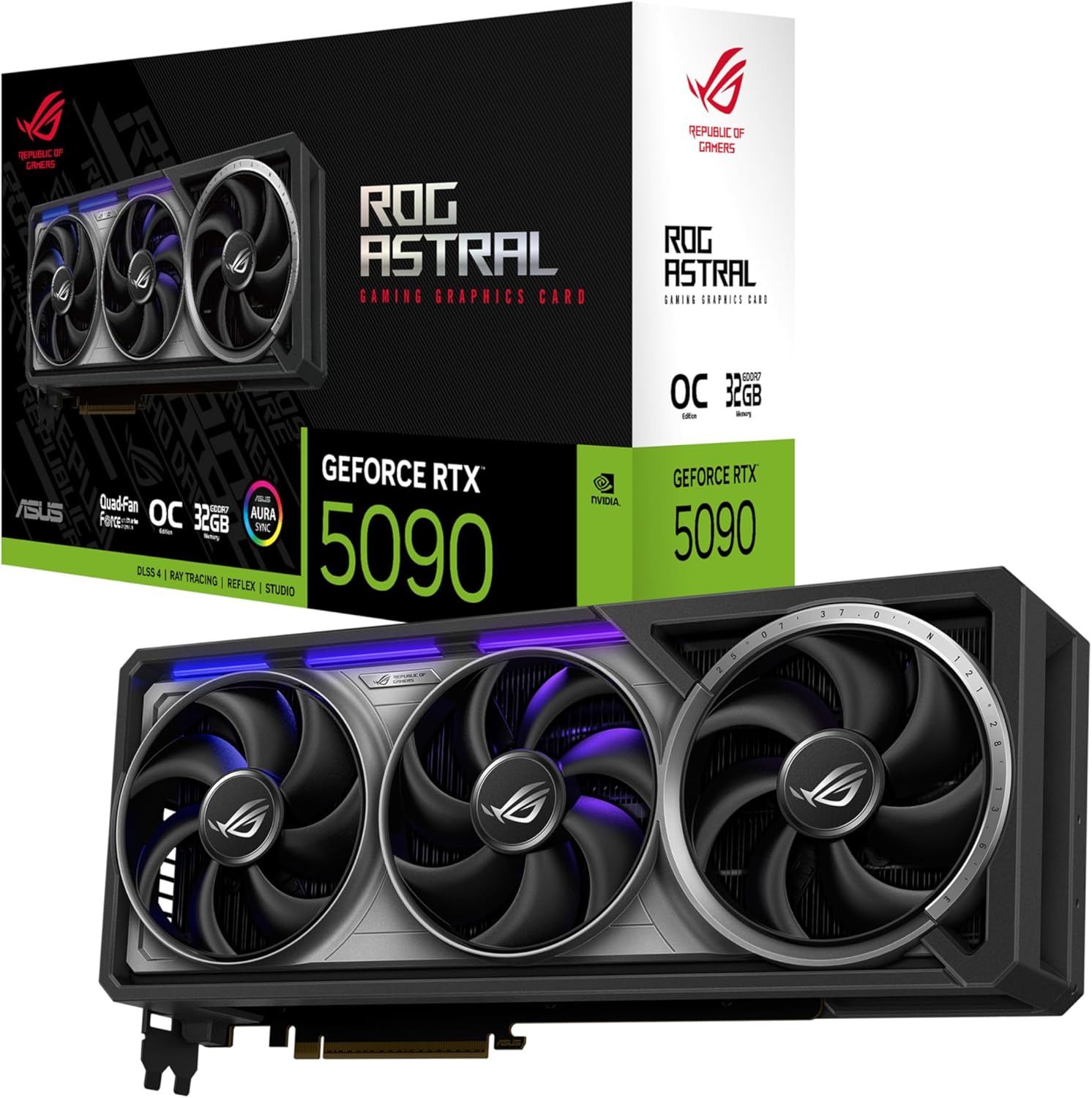
ASUS ROG Astral NVIDIA GeForce RTX 5090 32GB
- Graphics RAM32 GB GDDR7
- Boost Clock~2.41 GHz
- Cores21,760 CUDA
- Wattage (TDP)575 W
- GPU ChipsetGeForce RTX 5090
- Memory Interface512-bit
- InterfacePCIe 5.0
- PlatformDesktop PC
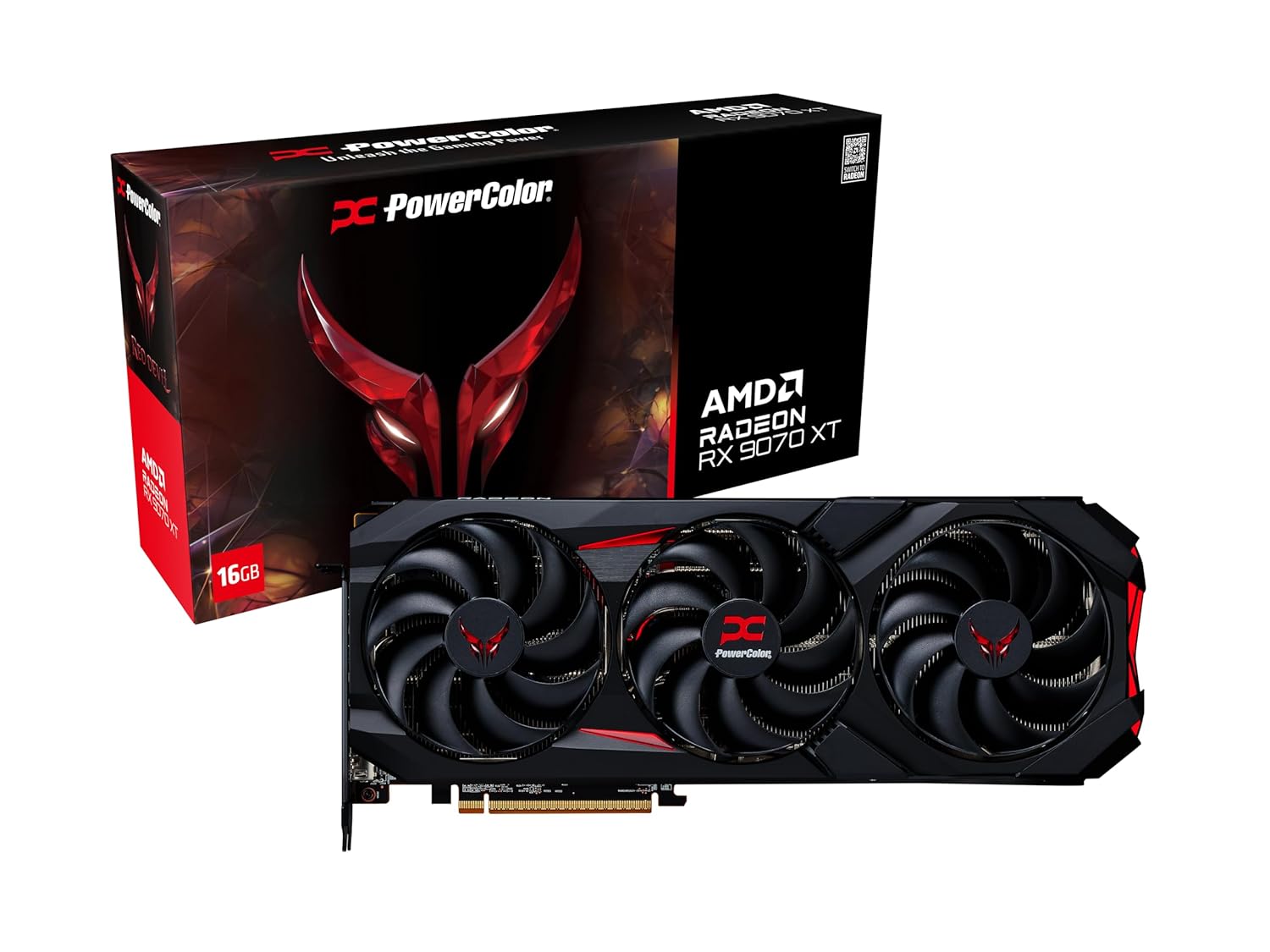
PowerColor Red Devil AMD Radeon RX 9070 XT 16GB
- Graphics RAM16 GB GDDR6
- Boost Clock~2.97 GHz
- Cores4,096 (64 CU)
- Wattage (TDP)304 W
- GPU ChipsetRadeon RX 9070 XT
- Memory Interface256-bit
- InterfacePCIe 5.0
- PlatformDesktop PC
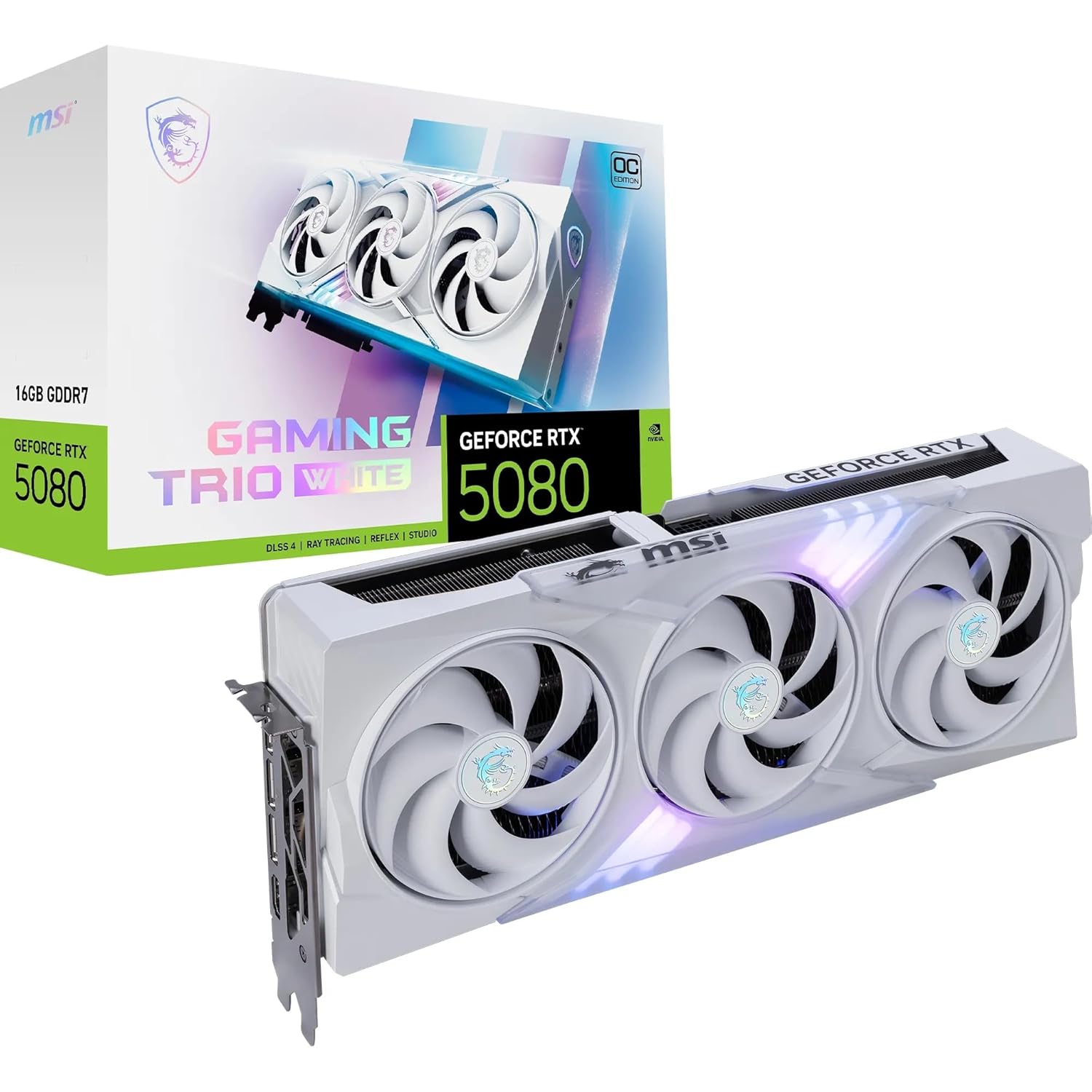
MSI NVIDIA GeForce RTX 5080 16GB
- Graphics RAM16 GB GDDR7
- Boost Clock~2.62 GHz
- Cores10,752 CUDA
- Wattage (TDP)360 W
- GPU ChipsetGeForce RTX 5080
- Memory Interface256-bit
- InterfacePCIe 5.0
- PlatformDesktop PC
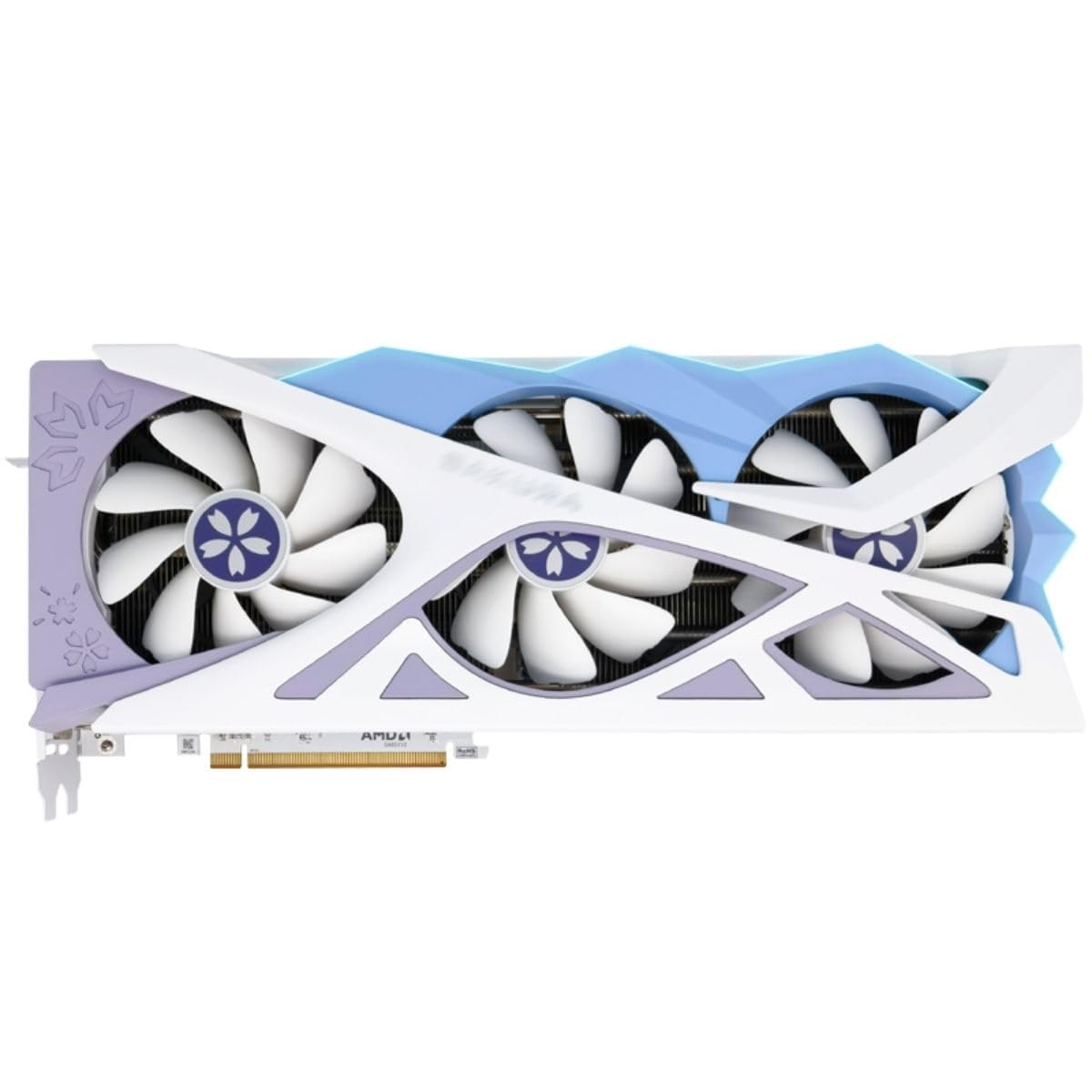
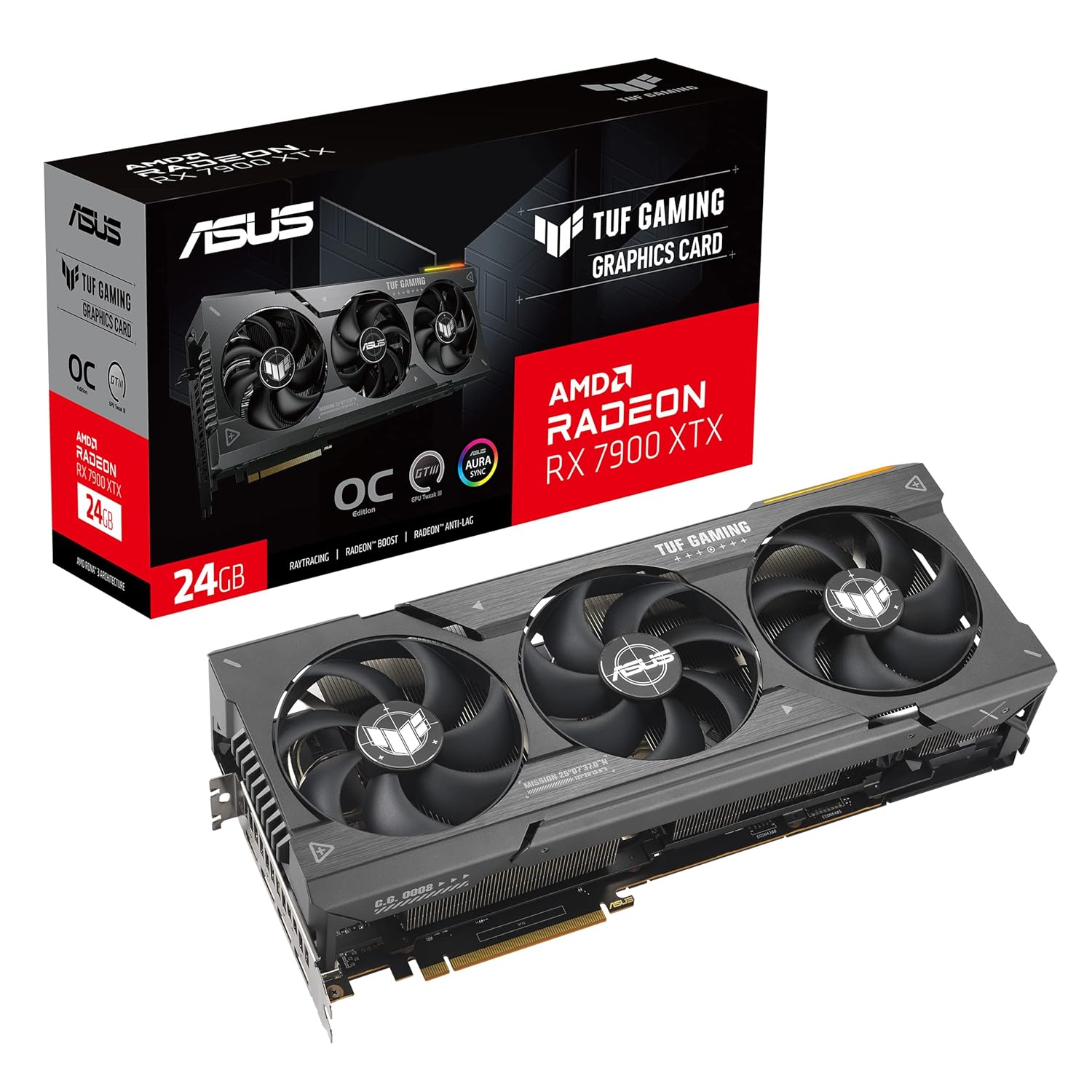
ASUS TUF AMD Radeon RX 7900 XTX 24GB
- Graphics RAM24 GB GDDR6
- Boost Clock~2.50 GHz
- Cores6,144 (96 CU)
- Wattage (TDP)355 W
- GPU ChipsetRadeon RX 7900 XTX
- Memory Interface384-bit
- InterfacePCIe 4.0
- PlatformDesktop PC
Affiliate Disclosure: As an Amazon Associate we earn from
qualifying purchases. We may receive a small commission when you buy through
the links on this page, at no additional cost to you. This helps support our
free PC bottleneck calculator.
Image Disclaimer: All product photos are sourced from Amazon
and remain the property of their respective manufacturers and brand owners.
Images are shown for identification and reference purposes only.

GeForce NOW Goes Back to School: Native Linux App, Chromebook Gaming, and Faster Frames
GeForce NOW is kicking off the back to school season with one of its most useful updates in a while, and it is not just…
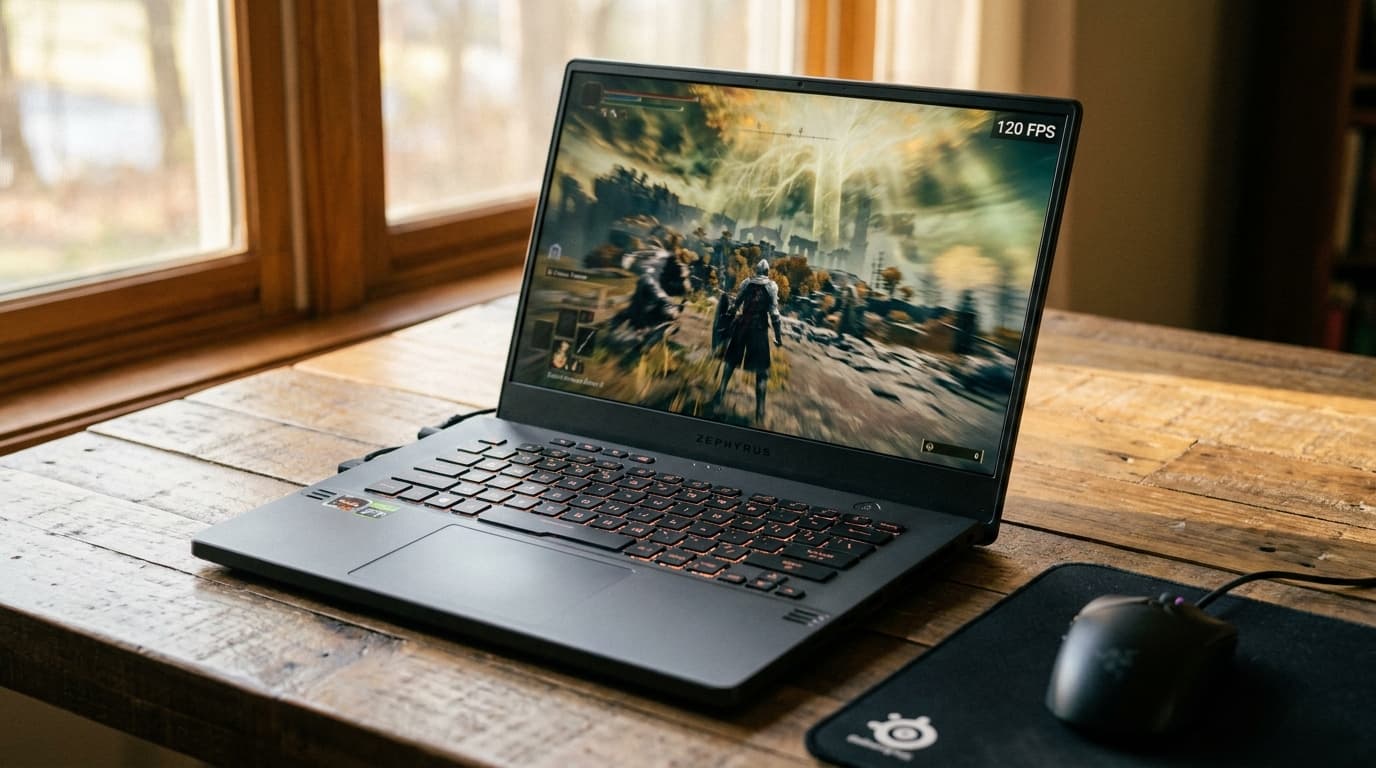
FPS Calculator for Laptops: How to Estimate Gaming Performance
Gaming laptops make performance harder to predict than desktops, because a graphics card with the same name can behave very differently from one machine to…

What Is a Good Bottleneck Percentage? What the Numbers Actually Mean
You ran a bottleneck calculator, and it handed you a number like “12 percent.” Now the real question: is that good, bad, or nothing to…
Stop Guessing and Find Out If Your PC Has a Bottleneck
Not sure whether your rig is truly balanced? Instead of hoping your parts work well together, get a clear, data-backed answer in seconds. The calculator compares your exact components against real benchmark tiers and shows you which part is capping your frame rates and by how much, so every upgrade decision is based on evidence, not guesswork.
A single mismatched component can quietly hold back your whole system. Run your build above to reveal hidden limitations, see your balance score, and know exactly which part to change before you spend a dollar.

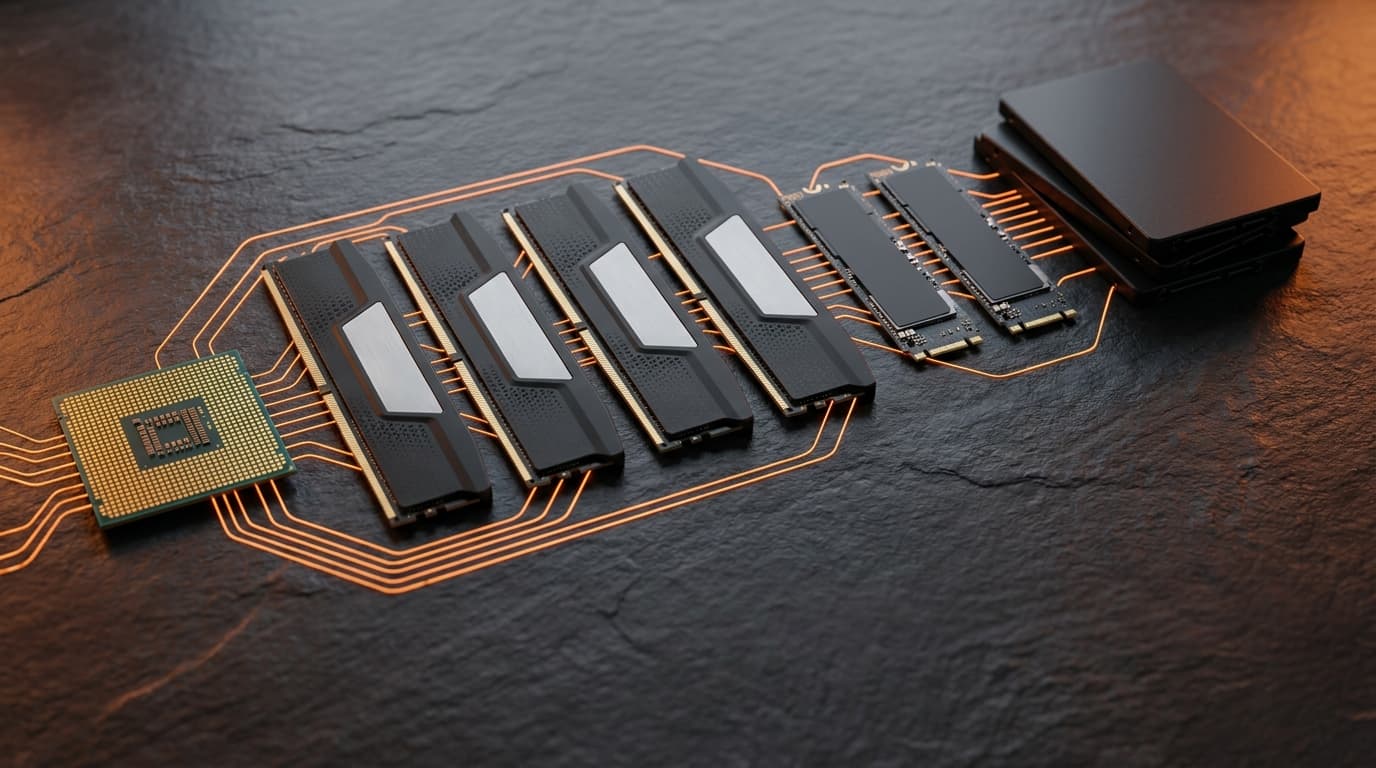
Balance the Whole System, Not Just CPU and GPU
Great pairings don't stop at the processor and graphics card. Memory and drives shape real-world smoothness just as much, and loose timings or a slow disk can quietly throttle an otherwise strong build. Widen your view with two companion tools: the RAM Latency Calculator shows whether your memory timings work for you or against you, while the RAID Calculator helps you plan storage arrays that keep load times and transfers quick. Read those next to your bottleneck test, and you'll understand every link in the chain, not just the two headline parts.